How to Make Instrumental Music with AI: Intro & Interlude
Learn to create instrumental tracks with MuziAI using empty [Intro] tags, long instrumental intros, and stem separation for backing tracks.
In this article, you will learn three ways to get instrumental music from MuziAI: leaving [Intro] and [Interlude] sections empty, selecting the long instrumental intro technique, and splitting stems to extract the backing track. You can apply these methods immediately after reading.
Why you might need instrumental music
Instrumental music is used for video intros, podcast backgrounds, or song lead-ins. With MuziAI, you don't need to play an instrument. Just a few clicks let the AI generate a backing track in your chosen style.
Method 1: Use [Intro] and [Interlude] placeholders
When writing your own lyrics, leaving the [Intro] or [Interlude] sections empty tells the AI to generate instrumental music for those parts. This is the simplest way to create an intro or mid-song break with no vocals.
Steps
- Open the Write Lyrics tab on the lyrics page.
- Enter the song title.
- In the lyrics box, type the label [Intro] and leave the line below it empty. Do the same for [Interlude] if you want an instrumental break in the middle.
- Fill in [Verse] and [Chorus] sections normally.
- Click Create a Song.
Example lyric structure:
[Intro]

[Verse]
Sunlight hits the long street
[Chorus]
We sing a brand new song
Method 2: Select «Long instrumental intro»
Besides leaving labels empty, you can select the Long instrumental intro mixing technique in the Instruments & Arrangement section. This prompts the AI to create a long instrumental lead-in before the vocals enter.
- On the creation page, scroll to the Instruments & Arrangement section.
- In the mixing techniques list, select Long instrumental intro.
- You can add instruments like Piano or Acoustic Guitar to make the intro clearer.
- Click Create a Song and wait for the result.
This technique is a suggestion to the AI and doesn't guarantee exact notes, but it usually results in a longer intro than standard.
Method 3: Split stems for a full backing track
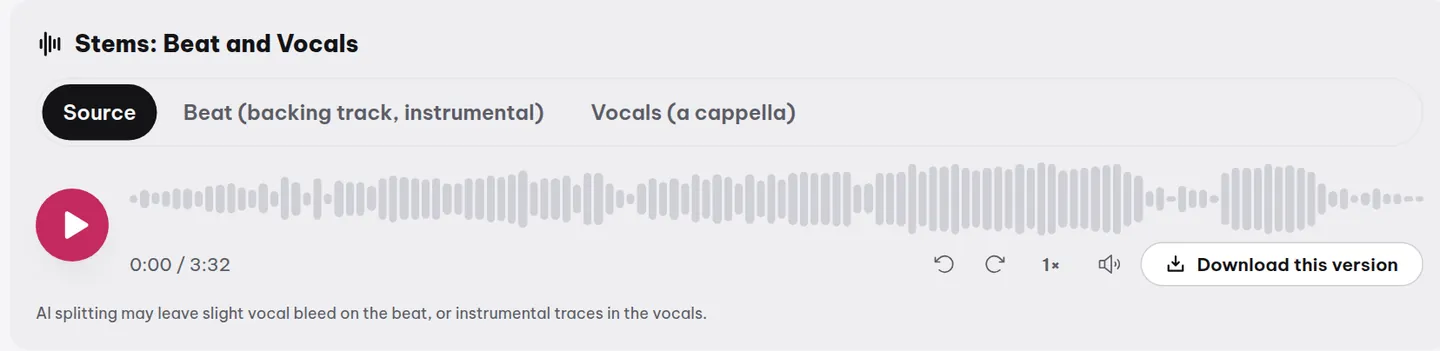
If you already have a complete song and want just the music, use the Split beat and vocals button. MuziAI separates the beat and vocal tracks; download the beat file to get the instrumental version.
On the song result page, find the Split beat and vocals button. Click it and wait about 1-2 minutes.
![The Write Lyrics tab interface with the lyrics input box and [Intro] [Verse] [Chorus] label buttons.](/anh/blog/en/tab-tu-viet.webp)
After splitting, you will see two separate players: one for the beat and one for the vocals. Click Download beat to save the instrumental version to your device.
Combining all three methods for a long instrumental track
You can combine these methods: use empty [Intro] and [Interlude], select Long instrumental intro, and then split the stems. The result is a nearly pure instrumental track from start to finish.
- Create a song with empty [Intro] and [Interlude] sections.
- Select the Long instrumental intro technique.
- Once the song is generated, click Split beat and vocals.
- Download the beat file.
Note: If you want a song with only music and no lyrics, you can create a song with only empty [Intro] and [Interlude] sections, without [Verse] or [Chorus]. The AI will generate a full backing track.
Tips for choosing styles for instrumental music
Instrumental music often suits genres like Lo-fi, Acoustic, or gentle Ballads. In the Style section, you can select Lo-fi or Acoustic for a relaxing vibe. If you need energetic music for a video, choose EDM or Funk/Disco.
You can also check samples in the sample library to hear instrumental music from various styles.
Frequently asked questions
Can I create a song with only music and no lyrics?
Yes. Simply write lyrics with empty [Intro] and [Interlude] sections, without adding [Verse] or [Chorus]. The AI will generate a full backing track. Alternatively, you can create a song with lyrics and then split the stems to extract the music.
Is splitting stems time-consuming?
Each song can only be split once, taking about 1-2 minutes. After splitting, the beat and vocal files are permanently saved for anyone viewing the page. You cannot split the song again.
What if I want to edit lyrics after the song is generated?
You cannot edit lyrics after the song has been sung. You must create a new song with the corrected lyrics. Please check your lyrics carefully before clicking Create a Song.
Try it now on MuziAI
Free, no sign-up required. Share an idea, and our AI lyrics generator writes and sings a complete song.
Create Song