Top-p, Top-k, Temperature, and Repetition Penalty Explained
Understand Top-p, Top-k, Temperature, and repetition penalty in MuziAI to fine-tune your songs easily, perfect for beginners using an AI song generator.
After this article, you'll understand each slider in the "For tech-savvy users" section of MuziAI. You'll know when to increase Temperature, when to lower Top-p, and how to use repetition penalty to stop the AI from repeating the same line. Everything is explained in plain language, no programming knowledge needed.
Accessing the "Advanced Settings"
Before clicking Create Song, open the Advanced Settings section at the bottom of the page. Scroll all the way down, and you'll find a section called For tech-savvy users. This is where the Temperature, Top-p, Top-k, and Repetition Penalty sliders live.
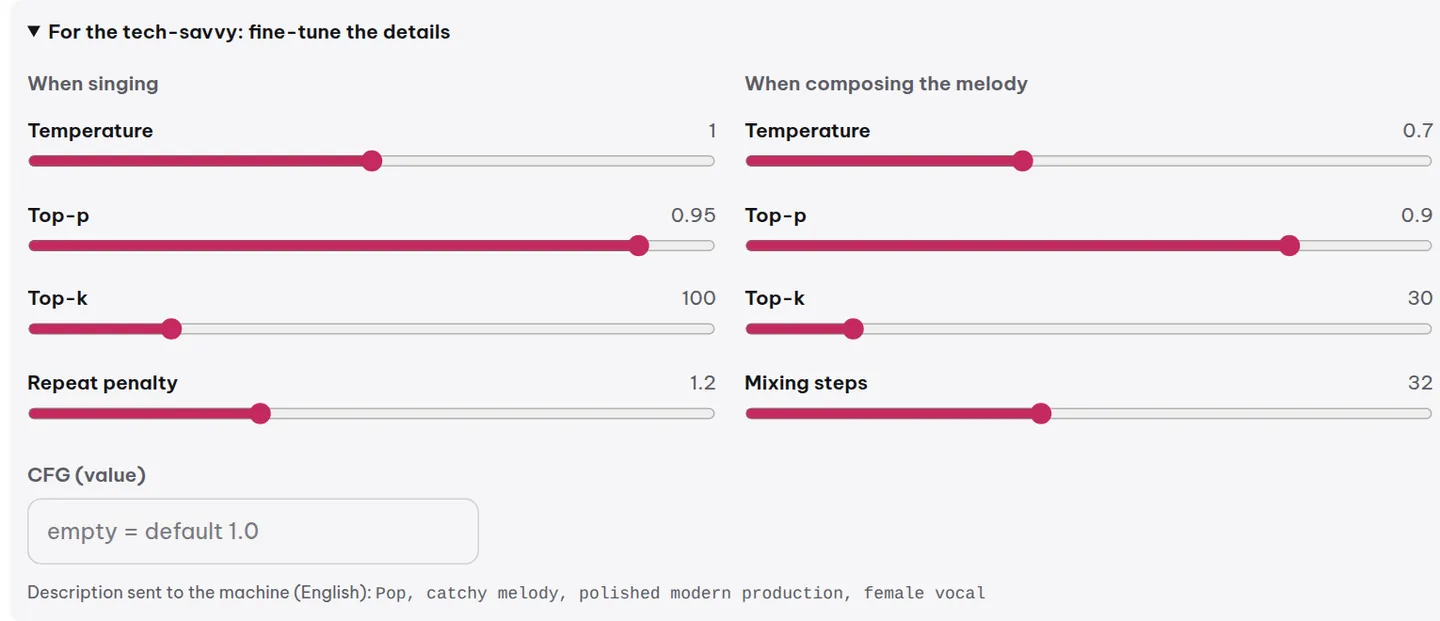
These sliders are split into two groups: When Singing and When Composing Melody. The When Singing group affects how the AI picks words in the lyrics. The When Composing Melody group affects how the AI creates musical notes. Each slider has a small circular button on the right to reset it to its default value if you want to start over.
Temperature: The AI's Boldness
Temperature is the most important slider. It determines how 'bold' the AI is when picking notes or words. A low value (near 0) makes the AI safe, choosing common, predictable options. A high value (near 1 or above) makes the AI adventurous, trying unexpected choices, possibly odd notes or rare words.
For example, if you want a gentle ballad, setting a low Temperature will give you a smooth melody and familiar lyrics. If you want a groundbreaking rap, cranking up the Temperature will make the AI produce more surprising lines.
Top-p and Top-k: Limiting Choices
Top-p and Top-k are two ways to limit how many options the AI is allowed to consider. They work differently but share the same goal: preventing the AI from picking terrible choices.
Top-k: Pick from the Top k Options
Top-k restricts the AI to only the k highest-probability options. For example, Top-k = 10 means the AI only considers the 10 most likely words or notes, ignoring all others. A small k (like 5) makes the song safe and formulaic. A large k (like 50) gives the AI more freedom.
Top-p: Pick Until Probability Reaches p
Top-p doesn't limit the count directly. Instead, it starts with the highest-probability options and keeps adding them until their cumulative probability reaches p. For instance, Top-p = 0.9 means the AI picks from the smallest set of options whose total probability is at least 90%. If 3 options already cover 90%, it only considers those 3; if it needs 20 options to reach 90%, it considers all 20.
In practice, you don't need to adjust both at once. If you want simplicity, leave Top-k at its default and only fine-tune Top-p. Top-p is often more intuitive because it adapts to the context.
Repetition Penalty: Preventing Repetitive Output
The repetition penalty has two separate sliders: Repetition Penalty (When Singing) and Repetition Penalty (When Composing Melody). When the AI picks the next word or note, it tends to repeat what it just chose. Increasing the penalty reduces that tendency.
If you notice the AI repeating a line too many times, increase Repetition Penalty (When Singing). If the melody keeps circling around a few notes, increase Repetition Penalty (When Composing Melody). But don't push it too high, or the song may become disjointed and lack coherence.
How to Combine the Sliders
There's no universal formula, but here's an easy approach:
- Start with all sliders at default. Generate a song and listen.
- If the song is too safe and boring: increase Temperature slightly (e.g., from 0.7 to 0.8) and decrease Top-p (e.g., from 0.9 to 0.8) to focus on better options.
- If the song repeats words or notes: increase Repetition Penalty (When Singing) or Repetition Penalty (When Composing Melody) by about 1.5x.
- If the song is chaotic and lacks flow: lower Temperature and increase Top-k (e.g., from 10 to 20) to give the AI more safe choices.
- Change only one slider at a time, generate a new song, and listen to compare.
For example, if you want a cheerful pop song, try Temperature = 0.6, Top-p = 0.9, Top-k = 20, Repetition Penalty (When Singing) = 1.0, and Repetition Penalty (When Composing Melody) = 0.8. This is a solid starting point for pop.
Important Notes
These sliders are suggestions for the AI, not absolute commands. The AI may still produce results different from your expectations. Be patient and experiment multiple times, changing one thing at a time. You can always use the reset button to return to the starting point.
If you don't want to touch this section, just leave it at default. MuziAI comes with values that work well for most users. This section is only for those who want deeper control.
Frequently Asked Questions
Do I need to adjust all the sliders?
No. Only adjust the sliders related to the problem you're facing. If the song repeats words, just increase Repetition Penalty (When Singing). If the melody is dull, increase Temperature. Changing too many at once makes it hard to know what caused the result.
What are the default values?
Each slider has a preset default value. You can see it by hovering over the circular button next to the slider. That button will also reset the slider to its original value if you've changed it.
Can I use these sliders to make more unique songs?
Yes. Increasing Temperature and decreasing Top-p will make the AI more creative, but it may also produce hard-to-listen results. Try different values and keep the version you like. You can generate multiple versions and compare, just like using the Create Another Version button.
Try it now on MuziAI
Free, no sign-up required. Share an idea, and our AI lyrics generator writes and sings a complete song.
Create Song