AI Song Length: Why Your Track Is Long or Short
Learn how to control AI song length by choosing lyric length, adding sections to extend, and using empty Intro/Interlude for instrumental parts.
After reading this article, you'll know why your AI song generator output runs long or short, how to make it longer by adding sections, and how to create instrumental parts with empty Intro or Interlude labels. No music knowledge needed, just follow the steps.
Song Length Follows Lyric Length
On MuziAI, the AI music generator sings exactly the lyrics you provide. Short lyrics mean a short song; long lyrics mean a long song. The machine won't add or remove lines on its own. So, to control length, you need to manage the lyrics first.
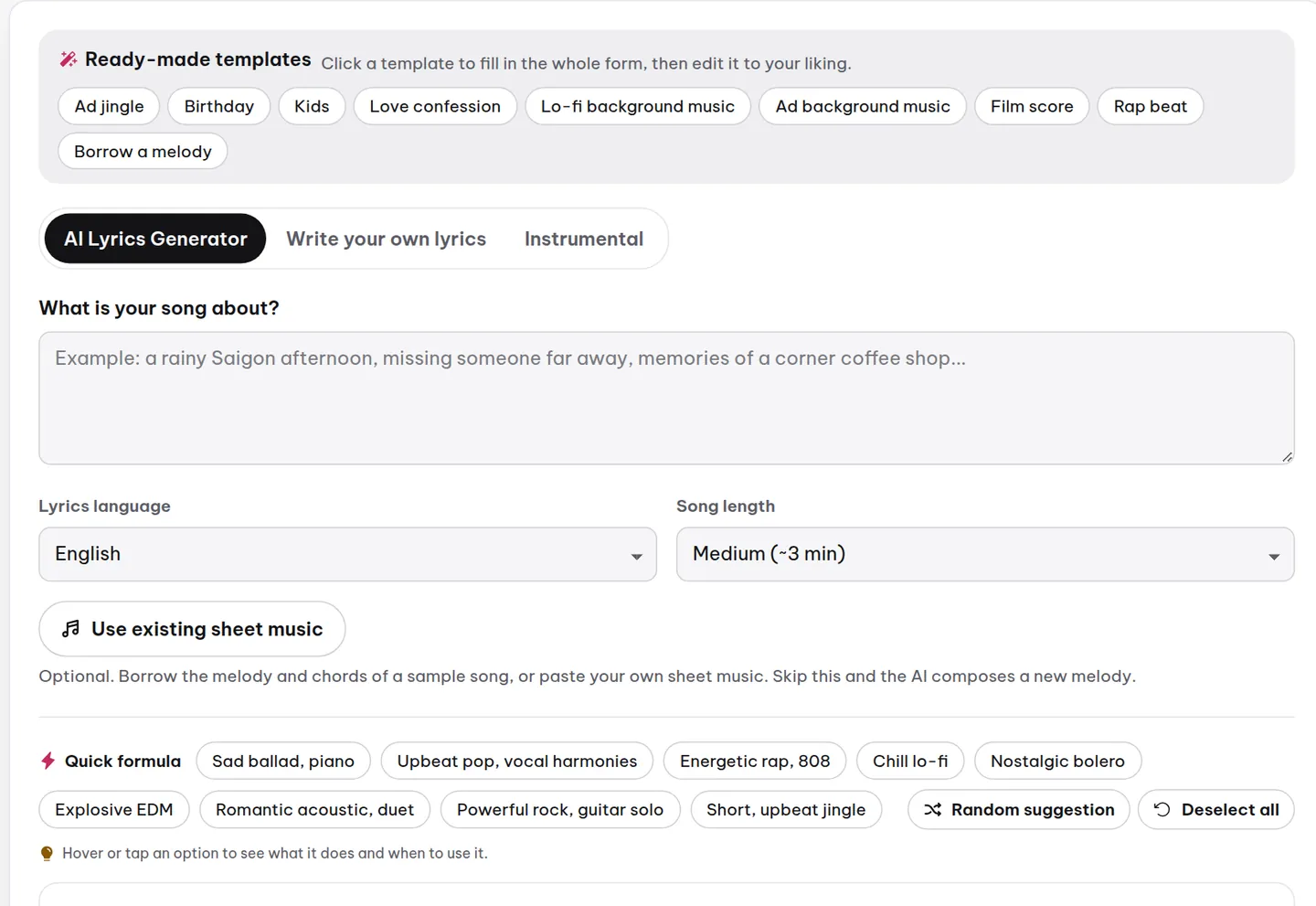
When you ask the AI to write lyrics, you have three length options: Short about 2 minutes, Medium about 3 minutes, Long about 4 minutes. These are estimates based on the number of lines the AI will write. Choosing Long gives more lyrics and a longer song.
If you write lyrics yourself, the song length is determined by how many lines you enter. More lines mean a longer song. MuziAI allows up to 3000 characters and between 2 and 90 singing lines.
How to Choose Length When Asking AI to Write Lyrics
When using the AI Write Lyrics tab, after entering your idea in the "What's the song about?" field, you'll see a length selector. Follow these steps:
- Open the song creation page and select the AI Write Lyrics tab.
- Enter your song idea in the "What's the song about?" field.
- Choose a length: Short (~2 min), Medium (~3 min), or Long (~4 min).
- Select the lyric language and other styles.
- Click Write Lyrics with AI and wait for the lyrics to appear.
The generated lyrics will have a number of lines matching the length you chose. You can edit, add, or remove lines before clicking Create Song.
Want a Longer Song? Add Sections
When writing your own lyrics or after AI generates them, you can add sections to make the song longer. Each section typically has 4 to 8 lines. For example, if your song has one Verse and one Chorus, you can add Verse 2 before the final chorus.
How to add sections:
- Open the Write Your Own Lyrics tab or edit the AI-generated lyrics.
- Place the cursor where you want to add the new section.
- Click the insert label button, e.g., [Verse] or [Bridge], then write lyrics for that section.
- Ensure the total number of lines doesn't exceed 90.
For example, a song with the structure: [Intro] (empty), [Verse 1], [Chorus], [Verse 2], [Chorus], [Bridge], [Chorus], [Outro] (empty) will be longer than one with just a single Verse and Chorus.
Empty Intro and Interlude: Instrumental Sections
You can create instrumental sections by leaving the lyrics empty under [Intro], [Interlude], or [Outro] labels. When the machine encounters these labels with no lyrics, it plays background music for a duration corresponding to the number of empty lines you leave.
For example, if you write:
[Intro]

[Verse 1]
The sky is blue and gold
Clouds drift across the sun
[Chorus]
We sing a song of joy
For life and everyone
The empty [Intro] becomes an instrumental opening. Similarly, an [Interlude] in the middle creates an instrumental break between sections.
Lyric Length Affects the Melody
When you choose the lyric length, the AI writes a fitting number of lines. But the melody also depends on this length. With short lyrics, the AI might create more repetitive melodies. With long lyrics, the melody can be more varied to avoid monotony.
If you want a song with clear structure and a climactic chorus, make sure the lyrics include proper Verse and Chorus sections, and consider adding a Bridge. This helps the AI create contrast between sections.
Practice: Create a 4-Minute Song
Try making a song about 4 minutes long by following these steps:
- Select the AI Write Lyrics tab and choose Long length.
- Enter your idea, choose the genre and vocal style.
- After AI writes the lyrics, check the line count (around 40-50 lines).
- Add an empty [Interlude] in the middle for an instrumental break.
- Click Create Song and wait for the result.
The result will be a longer song with an instrumental section and a clearer structure.
Frequently Asked Questions
I chose Long but the song is still short, why?
The AI might have written fewer lines than expected, or you removed lines while editing. Check the line count in the lyrics before generating. If the lyrics have fewer than 30 lines, the song will typically be under 3 minutes.
How do I get an instrumental part in the middle of the song?
Use the [Interlude] label and leave the lyrics empty below it. The machine will play background music for a duration corresponding to the number of blank lines. You can also use empty [Intro] or [Outro] labels.
Can I extend the song after it's been created?
No. Once the song is created, you can't edit the lyrics or add sections. You'll need to recreate the song with longer lyrics. Always review the lyrics before clicking Create Song.
To learn more about writing lyrics, see the guide to writing your own lyrics or explore the sample song library to hear songs of different lengths. If you want to know how to choose a genre, read the article on genres.
Try it now on MuziAI
Free, no sign-up required. Share an idea, and our AI lyrics generator writes and sings a complete song.
Create Song